We compressed one scanned PDF to 50KB, 100KB, 200KB, 300KB, 500KB, 1MB and 2MB: what each size does
Every size limit sounds like a number, but what you get at that number is a picture. To see it, we took one made-up document, a 3-page phone-scan style PDF of 3.61 MB, and ran it through each of SlimIO's size pages on 30 October 2026, the same way you would: drop the file in, click Compress, download. This page shows what came out at 50KB, 100KB, 200KB, 300KB, 500KB, 1MB and 2MB. The 500KB and 1MB rows were measured again with the same file on 1 November 2026, after we fixed how the tool steps down (see below).
Compress your PDF →Pick a size, drop the file in and see the result size before you download. Free, no signup.
The results at a glance
| Target | Result | Per page | What happened | How the text looks |
|---|---|---|---|---|
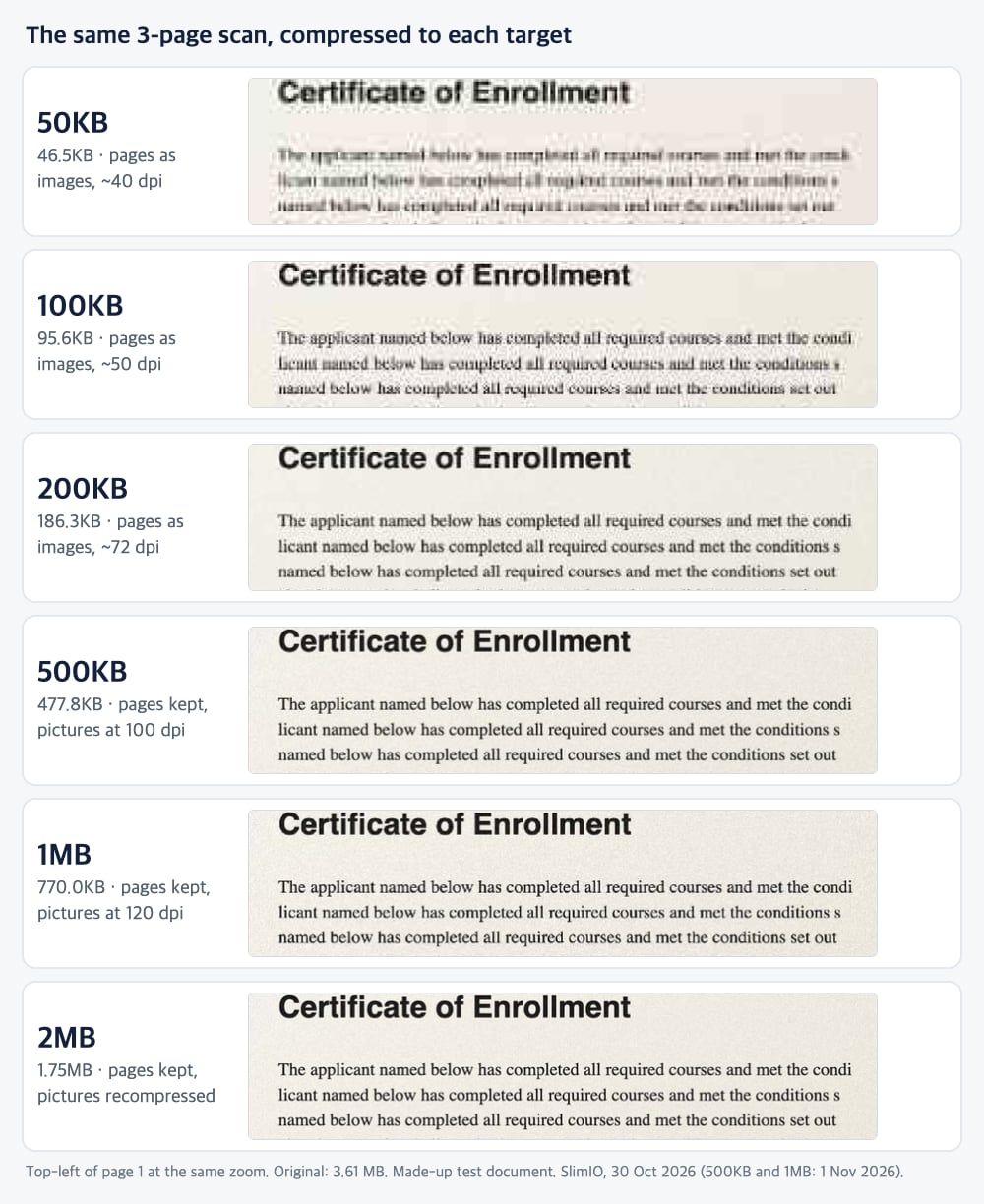
| 50KB | 46.5 KB | 15.5 KB | Pages turned into images, about 40 dpi | Body text blurry, heading fine |
| 100KB | 95.6 KB | 31.9 KB | Pages turned into images, about 50 dpi | Readable, a little soft |
| 200KB | 186.3 KB | 62.1 KB | Pages turned into images, about 72 dpi | Clear |
| 300KB | 280.2 KB | 93.4 KB | Pages turned into images, about 90 dpi | Clear |
| 500KB | 477.8 KB | 159.3 KB | Pages kept, pictures recompressed at 100 dpi | Sharp |
| 1MB | 770.0 KB | 256.7 KB | Pages kept, pictures recompressed at 120 dpi | Sharp |
| 2MB | 1.75 MB | 0.58 MB | Pages kept, pictures recompressed | Sharp |
What the numbers say
Below about 30 KB a page, the body text goes
At 50KB the three pages share 46.5 KB, so each gets about 15 KB. To fit, SlimIO turned every page into an image at about 40 dpi. The large heading survived, but the paragraph text smudged into grey strokes, and because the pages are now pictures, the text can no longer be selected or searched. This is why the 50KB page tells you to keep only the page the form needs: one page gets the whole 50KB.
100KB to 300KB is where scans become usable
With 32 KB a page the text at 100KB was readable but soft. At 200KB (62 KB a page) it was clear, and at 300KB it stayed clean. If a form accepts a few pages and gives you 200KB or more, you can send all three. If it caps you at 100KB, send one or two.
From 500KB the tool stops rebuilding the pages
At 500KB, 1MB and 2MB SlimIO could keep the pages exactly as they were and shrink only the pictures inside them: to 100 dpi at 500KB, to 120 dpi at 1MB. No page was turned into an image, so the text is cleaner than at 300KB, and the bigger the limit, the more of the scan it keeps. The 2MB result, 1.75 MB, is about half the original with no visible loss.
What we fixed on 1 November
In the first run on 30 October, 500KB came out at 340.1 KB: below 1MB the tool went straight to 72 dpi, so the letters got blocky edges although 100 dpi would have fit. At 1MB it went the other way. Its first step left this file's 200 dpi pictures as they were, the result was too big, and the tool turned the pages into images at about 108 dpi (751.6 KB) without trying a lower resolution first, so 1MB came out rougher than 500KB. Now the server tries 150, 120 and 100 dpi before it turns pages into images, and the table above shows the same file run again. Which route a file takes still depends on the file, and the result box under the button always says whether the pages were kept or turned into images.
Picking a size for your own scan
Use the per-page column as a rough rule, not a promise:
- About 15 KB a page: only a heading or a large number survives. Fine for a one-page certificate where you only need it to be recognisable.
- About 30 KB a page: readable body text, a little soft. A good limit for one or two pages.
- 60 KB a page or more: clear text. Aim for this when a form checks details like numbers and dates.
If a document is too long for the limit, remove the pages the form does not need or split the PDF before compressing, because every page you drop gives the others more room. Scanning in grayscale at 150 dpi instead of colour also helps; see how to compress a PDF without losing quality for why.
How we ran the test, and its limits
- The file: three page images (about 1654 × 2339 pixels each, with a printed heading, text lines, a table, a stamp, uneven lighting and sensor-style noise) built into one PDF of 3,781,587 bytes (3.61 MB). The document is made up, so no real person's papers were involved.
- The run: each size page opened in Chrome against the live tool, the file added, Compress clicked once, the download measured. Sizes are shown the way the tool shows them, in KB of 1,024 bytes. The 500KB and 1MB rows are from 1 November 2026, the rest from 30 October.
- How readable: judged by eye on the first page, at the same zoom, as shown in the picture.
- What it is not: one file, one day. A different scan, or a later version of the tool, can give different numbers. Treat the pattern as the finding, not the exact kilobytes.
Try a size
Each size has its own page with the target already set: 50KB, 100KB, 200KB, 300KB, 500KB, 1MB and 2MB. Files that go through the sharp mode are sent to our server and deleted right after; the private mode compresses on your device. Details are in the privacy policy.
Pick a size, drop the file in and see the result size before you download. Free, no signup.