How to reduce PDF size on iPhone and Mac: the built-in options, tested
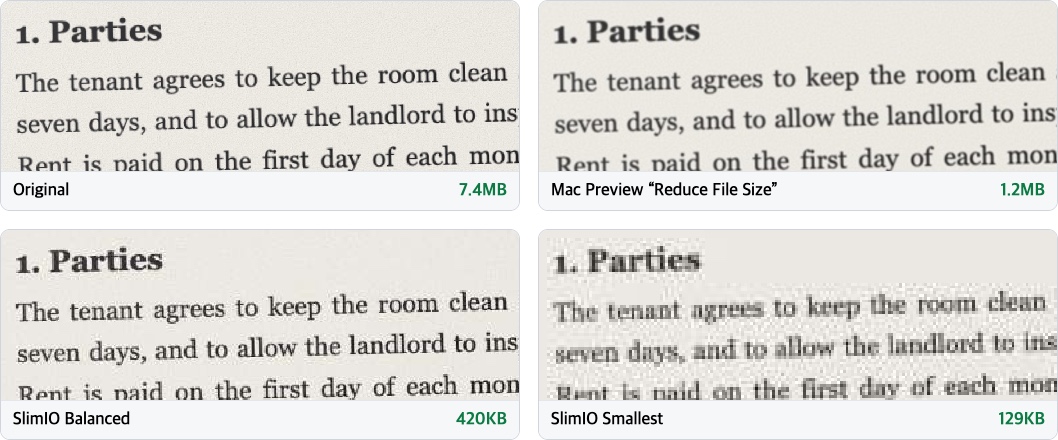
A PDF made from phone photos is big for a simple reason: every page is a 12-megapixel photo. Our three-page test document, at that size, came to 7.4 MB, far over the 1MB or 2MB limit many upload forms set. Apple gives you two built-in ways to shrink a PDF, Preview on the Mac and a Shortcuts action on iPhone, so we ran both on the same files, next to SlimIO, and measured what came out.
Compress a PDF →Works in Safari on iPhone, iPad and Mac. Text stays sharp, and you can aim for an exact size like 500KB or 1MB.
The three test files
- Photos of a paper document: a 3-page rental agreement made to look like phone photos of paper (one 3024 × 4032 JPEG per page, the 12-megapixel size phone cameras commonly save) and saved as one PDF, 7.4 MB. This is what most "my PDF is too big" problems look like.
- Screenshots: three phone screenshots (PNG) saved as a PDF, 655 KB.
- A text-only report: 4 pages of text, headings, a table and a chart, saved as PDF from a browser, 61 KB.
Results
| Method | Document photos | Screenshots | Text report |
|---|---|---|---|
| Original | 7.4 MB | 655 KB | 61 KB |
| Shortcuts: Optimize File Size of PDF | No change | No change | No change |
| Mac Preview: Reduce File Size | 1.2 MB (−84%) | 491 KB (−25%) | 122 KB (+99%) |
| SlimIO, Sharp, Balanced | 420 KB (−94%) | 454 KB (−31%) | 48 KB (−21%) |
| SlimIO, Private, Balanced | 379 KB (−95%) | 236 KB (−64%) | 57 KB (−6%) |
Sizes are as Finder shows them (1 KB = 1,000 bytes). "No change" means the file came out within 1 KB of the original. We also ran a Korean version of the text report through Preview: it grew from 101 KB to 667 KB, and its text could no longer be selected or searched, because the filter had turned every letter into drawn shapes.
On a Mac: Preview's Reduce File Size
This is the method Apple documents for the Mac:
- Open the PDF in Preview.
- Choose File > Export (not Export as PDF).
- In the Quartz Filter pop-up menu, choose Reduce File Size.
- Give the file a new name, so you keep the original, and click Save.
On macOS 27 the filter's settings file asks for images at 144 pixels per inch, at most 2,400 pixels on a side, saved as JPEG at quality 0.7. That explains the results: it does a fair job on photos, though its JPEG setting leaves the file about three times larger than SlimIO's at a similar resolution. It doesn't stop at the photos, though. It rewrites the whole file, and on our text PDFs that made things worse. Compare the new file with the original before you delete anything.
Apple also lists three checkboxes in the same Export dialog: Create Linearized PDF, Optimize images for screen and Save images as JPEG. They are worth a try on a photo-heavy file, with the same rule: check the size afterwards.
On iPhone and iPad: the Shortcuts action
The built-in way on iPhone is an action in the Shortcuts app called Optimize File Size of PDF. Apple's own description of it is careful: it "optimizes the file size of the provided PDF file by compressing its images. If the images contained in the PDF are already compressed, this action might not have a measurable effect on file size."
That warning matched what we saw. Photos from a phone are already JPEGs, and the action left all three of our files the same size, the screenshots included. If you want to try it on your own file, make a shortcut with the action, then add a Save File action after it and turn on Show in Share Sheet in the shortcut's details, so you can run it from the Share button in Files.
On iPhone, Mac or anything else: in the browser
SlimIO runs in Safari like any other web page, so the same steps work on iPhone, iPad and Mac:
- Open pdfslimio.com and tap the box to choose your PDF. On iPhone you pick it from the Files app.
- Leave the defaults (Sharp, Balanced) and tap Compress PDF.
- Tap Download compressed PDF. On iPhone the file goes to Files > Downloads.
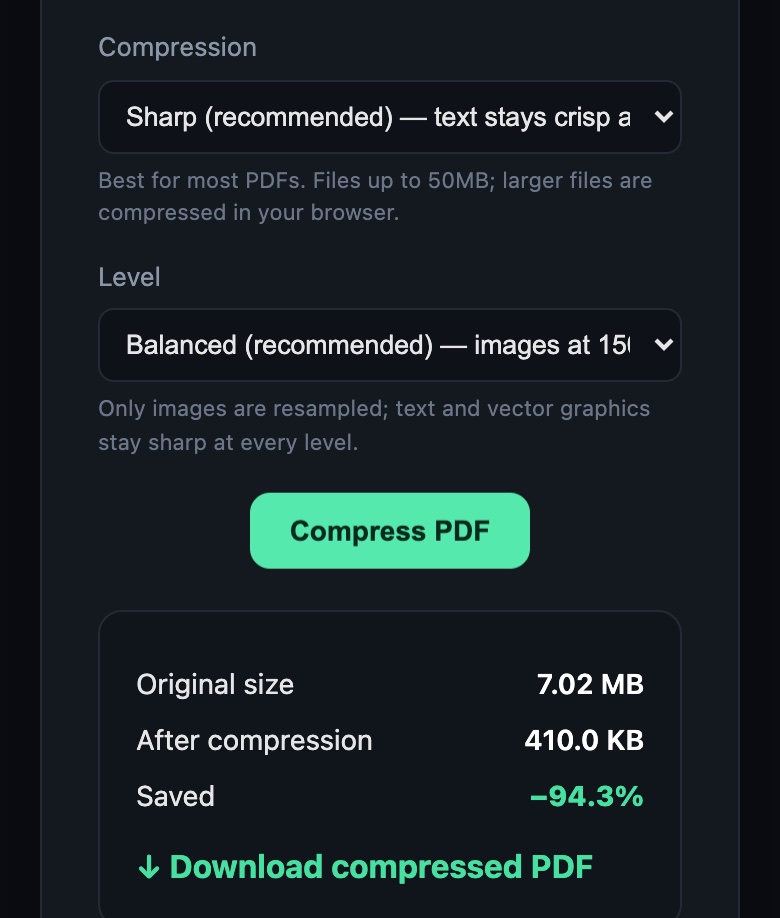
The two modes differ in where the work happens. Sharp sends the file to our server, where Ghostscript shrinks the images, tidies the fonts and deletes the file as soon as the result comes back; it is the one that made our text report smaller. Private never uploads anything: your phone's browser shrinks the photos inside the PDF and leaves the text alone. If a form wants a specific size, the 1MB, 500KB and 200KB pages keep trying stronger settings until the file fits.
Which one to use
| Your PDF | What to do |
|---|---|
| Photos or scans of paper | Any image compression helps a lot. Preview gets you about 6× smaller; SlimIO Balanced about 17× |
| Screenshots | Expect a smaller gain. SlimIO Private shrank ours by about two-thirds |
| Mostly text (exported from Word, Pages or a browser) | It is usually small already. Don't use Preview's filter; SlimIO Sharp trimmed ours by a fifth |
| Has to fit a limit like 1MB | Use a size page such as Compress PDF to 1MB |
If a document is still too big after all this, fewer pages beat any setting: take the pages the form actually asks for, or photograph the paper in good light so the scan has less noise to store. How to compress a PDF without losing quality explains what takes up the space inside a PDF and what each setting does.
Sources
- Apple Support, Reduce the size of a PDF in Preview on Mac — support.apple.com
- Apple, description of the Optimize File Size of PDF action in the Shortcuts app (macOS 27)
- macOS 27, the Reduce File Size filter settings (/System/Library/Filters/Reduce File Size.qfilter)
Works in Safari on iPhone, iPad and Mac. Text stays sharp, and you can aim for an exact size like 500KB or 1MB.